
Article
What Is a Passkey, and Why Are Websites Asking You to Create One?
Keep seeing “Create a passkey” when you sign in? Discover how passkeys work, why major tech companies are promoting them and what happens if you lose your phone.
What Is a Passkey, and Why Are Websites Asking You to Create One?
23 October 2026 | Binary-Tech Institute
Have you ever been asked to “create a passkey” when signing in to a website?
You just want to check your email or open an account. Then another security message appears.
You already have a password. Perhaps you receive a verification code too. Now the website wants a passkey.
It can feel like one more thing to set up. But the aim is to make future sign-ins easier and harder for criminals to steal.
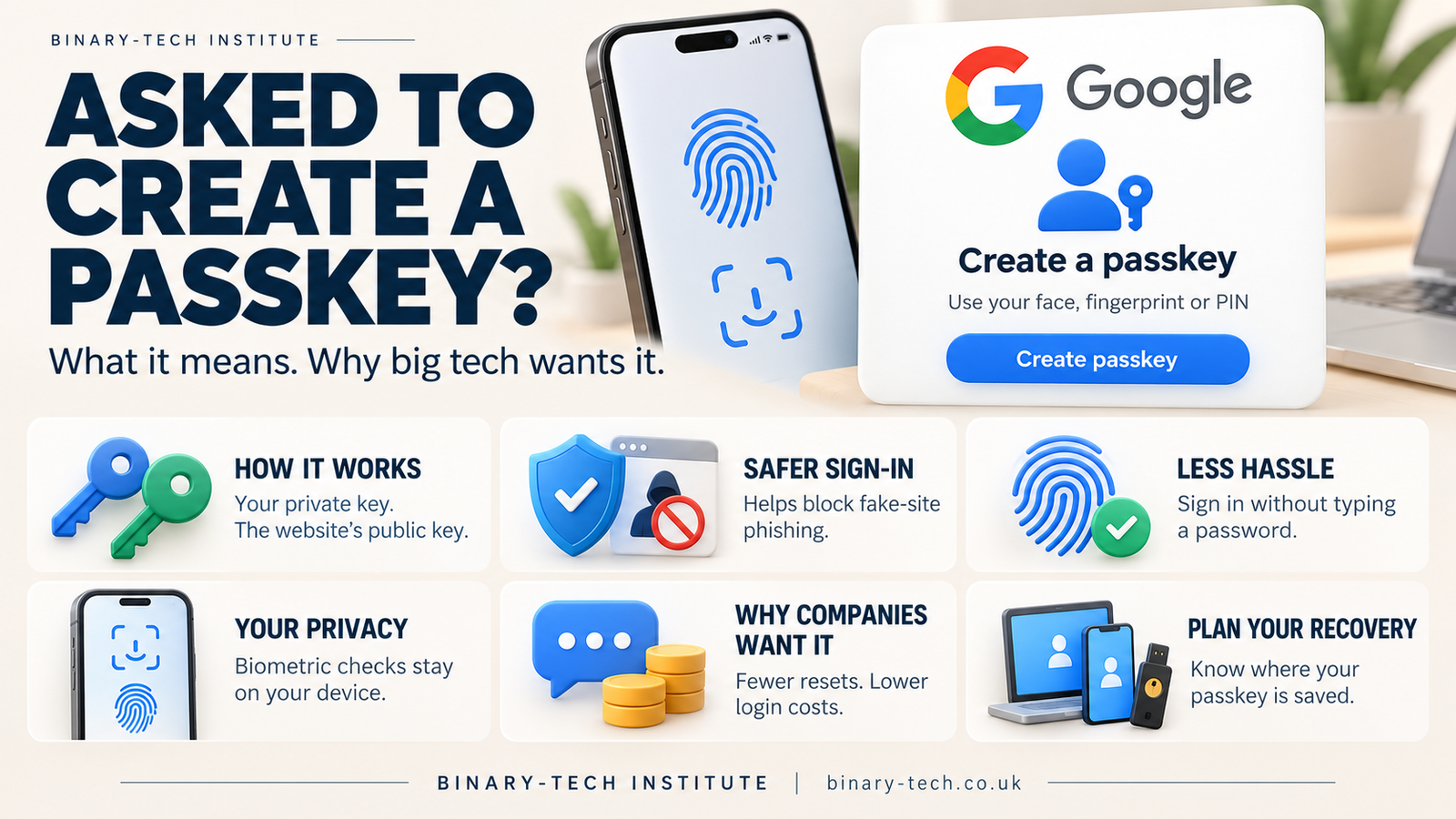
A passkey is a digital key for your account. You approve its use with something familiar, such as your fingerprint, face recognition or device PIN. Your device handles the complicated part, so you do not have to invent or remember another password. Google Account Help
Behind that simple action is a different way to prove who you are.
When you create a passkey, a pair of mathematical keys is generated:
- A public key is registered with the website.
- A private key is protected by your device, password manager or security key.
At sign-in, the website sends a fresh challenge. After you approve, your device uses the private key to sign it. The website checks that signature using the public key.
The private key is never sent to the website. Each account and service gets its own key pair. Your fingerprint or PIN authorises the use of that key.
You can use the same finger to approve different accounts while the keys behind those accounts remain different.
This changes what happens on a fake login page.
Imagine an email tells you that your account will be closed unless you sign in immediately. The link opens a convincing copy of a familiar website.
If you type your password there, the criminal can capture it.
Passkeys are tied to the genuine website. A lookalike site on a different domain cannot use that website’s passkey to authenticate you. The browser and authentication system check the connection to the correct service.
There is another advantage: stealing a website’s database of public keys does not give an attacker the private keys needed to sign in.
That protection helps explain why so many companies want people to switch.
There are business reasons too. FIDO, the industry organisation behind the standards, identifies benefits including fewer password resets, fewer support requests and fewer customers abandoning a purchase because they cannot sign in.
Think about the familiar shopping experience: your basket is ready, you cannot remember your password, the reset email takes time, and you lose interest.
A quicker login can mean a completed purchase. Fewer account problems can mean less work for customer support. Better security and commercial incentives point in the same direction.
The technology has also reached familiar devices and services. In May 2025, Microsoft announced that new personal accounts would start without a password by default, offering passwordless methods. It also described prompting existing users to register a passkey after signing in. Microsoft Security Blog
The savings can be quite concrete. On 14 September 2026, the UK government reported that passkeys were already saving GOV.UK One Login nearly £600 a day in SMS costs during its rollout. That is one service’s reported experience, but it shows why replacing repeated verification texts can appeal to organisations. GOV.UK
A fingerprint prompt can still make people uncomfortable. It is reasonable to want to know where that information goes.
For passkey sign-in, the biometric check happens on your device. Google explicitly says that the fingerprint or face data used to unlock a passkey stays on the device and is never shared with Google. The website receives cryptographic proof of the sign-in. Google Account Help
The practical question to ask before setting one up is: where will this passkey be saved?
There are two main types:
- Synced passkeys are kept in a compatible password manager and can become available on your other supported devices.
- Device-bound passkeys stay on a particular device or physical security key and do not sync.
Apple Passwords, Google Password Manager and several independent password managers support synced passkeys. The experience depends on the provider and devices you use.
For example, Apple says passkeys stored through iCloud Keychain sync using end-to-end encryption, with encryption keys unknown to Apple. Apple Support
This is why losing your phone does not automatically mean losing every account. A synced passkey may still be accessible through another authorised device or your provider’s recovery process. A passkey tied only to the missing device needs another sign-in or recovery route.
Before relying on passkeys, check your recovery options and understand how you would regain access. Protect the account that manages your synced keys. Keep your devices updated and use a strong screen lock.
The UK’s National Cyber Security Centre recommends using passkeys where available, while stressing that device security, credential managers and account recovery still matter. Passkeys do not make a compromised device safe. Where passkeys are unavailable, the NCSC recommends two-step verification.
Our view at Binary-Tech is that this is a useful change because it asks less of people during everyday sign-in. Remembering dozens of passwords and spotting every convincing fake page is a heavy burden.
The part companies need to explain better is what happens after setup: where the key lives, how it works on another device and how to recover access. A clear explanation can turn an unfamiliar popup into a choice people understand.
Start with one account you use regularly. Open its official app or website, find the security settings, and check the passkey and recovery options. Create it on a device you control, then try signing in so you know what to expect.
The next time “Create a passkey” appears, you will know what you are being offered: a way for your device to prove access to your account without asking you to remember another secret.
Frequently Asked Questions
Keep reading
Related guides
More practical writing on networking, cybersecurity, and IT careers.
 Article
When the Cloud Lost Power: How a London Outage Disrupted Revolut
A Google Cloud outage in London disrupted Revolut on 20 October 2026. Here is what happened, why recovery took time and what businesses can learn about resilience.
Read article Article
France’s Move from Windows to Linux: Why Digital Sovereignty Matters
France’s digital directorate has announced a move from Windows to Linux as ministries prepare wider plans to reduce dependence on non-European technology. We explore the costs, privacy concerns and lessons from the Gendarmerie’s earlier migration.
Read article Article
French Supermarket Cyberattack: How Hackers Targeted Fridges
A cyberattack on supermarket refrigeration systems in France shows how outdated, internet-connected equipment can disrupt real-world operations. Here’s what happened and the practical security lessons for businesses.
Read articleReady to learn with a mentor?
Turn what you just read into hands-on skill with a live Binary Tech cohort.